- v1.0.1
- MIT
- VS Code 1.85+
- no runtime dependencies
Robot Companion.
Your test files already explain themselves. This one renders it.
A VS Code extension for Robot Framework. It turns
the explanations already sitting in your
.robot files — [Documentation] blocks and ordinary comments — into
rendered prose in a side panel that follows your cursor. And because a test
is only half prose, it also reads your Python keyword libraries and tells you
what a keyword actually returns, right where you are about to use it.
It adds no formatter, no diagnostics, no language server. It sits beside whatever Robot Framework tooling you already run.
This page makes the case. The reference is the inventory: every capability, every limit, and what each part needs from your project.
Two characters turn a comment into a document
Robot Framework gives you
[Documentation]
— one block, at the top, away from the
steps it describes. So the real explanation ends up where explanations always end up: in
comments, next to the line they are about, where nothing renders them and nobody outside the
editor ever sees them.
Robot Companion reads two comment markers. #> is a documentation line;
#>> is a nested one under it. That is the whole syntax. Everything else —
headings, bullets, numbered lists, arrow notes for expected results — is ordinary Markdown
inside those markers. The file stays a perfectly normal Robot file: strip the extension and
you are left with comments.
*** Test Cases ***
Express Checkout Delivers On The Promised Date
    [Documentation]
    ...    Covers the express lane end to end: a
    ...    basket is built, the order is placed with
    ...    express shipping, and then checked.
    ...
    ...    - Express orders must quote a delivery
    ...        date; standard orders need not.
    ...        -> The date shows on the receipt.
    [Tags]    Checkout    Checkout-Express    Smoke

    #> ## Prepare the basket
    #> - Start from a clean basket so the totals
    #>   stay predictable.
    ${sku}=       Set Variable    DESK-LAMP-002
    ${basket}=    Add Item To Basket    sku=${sku}
    #>> -> The basket id is reused by later steps.

    #> ## Place the order
    #> - Express shipping is the case under test.
    ${order}=    Place Order    basket_id=${basket}
    ...          shipping=EXPRESS
    #>> -> <success>Confirmation returned.</success>

    #> ### What we then assert
    #> 1. The payment was at least authorised.
    #> 2. A tracking id exists.
    #> 3. The delivery date is a real date.
    #>> -> <note>Demo fixtures, not real data.</note>
    Should Be Equal    ${order.payment_state}
    ...                AUTHORISED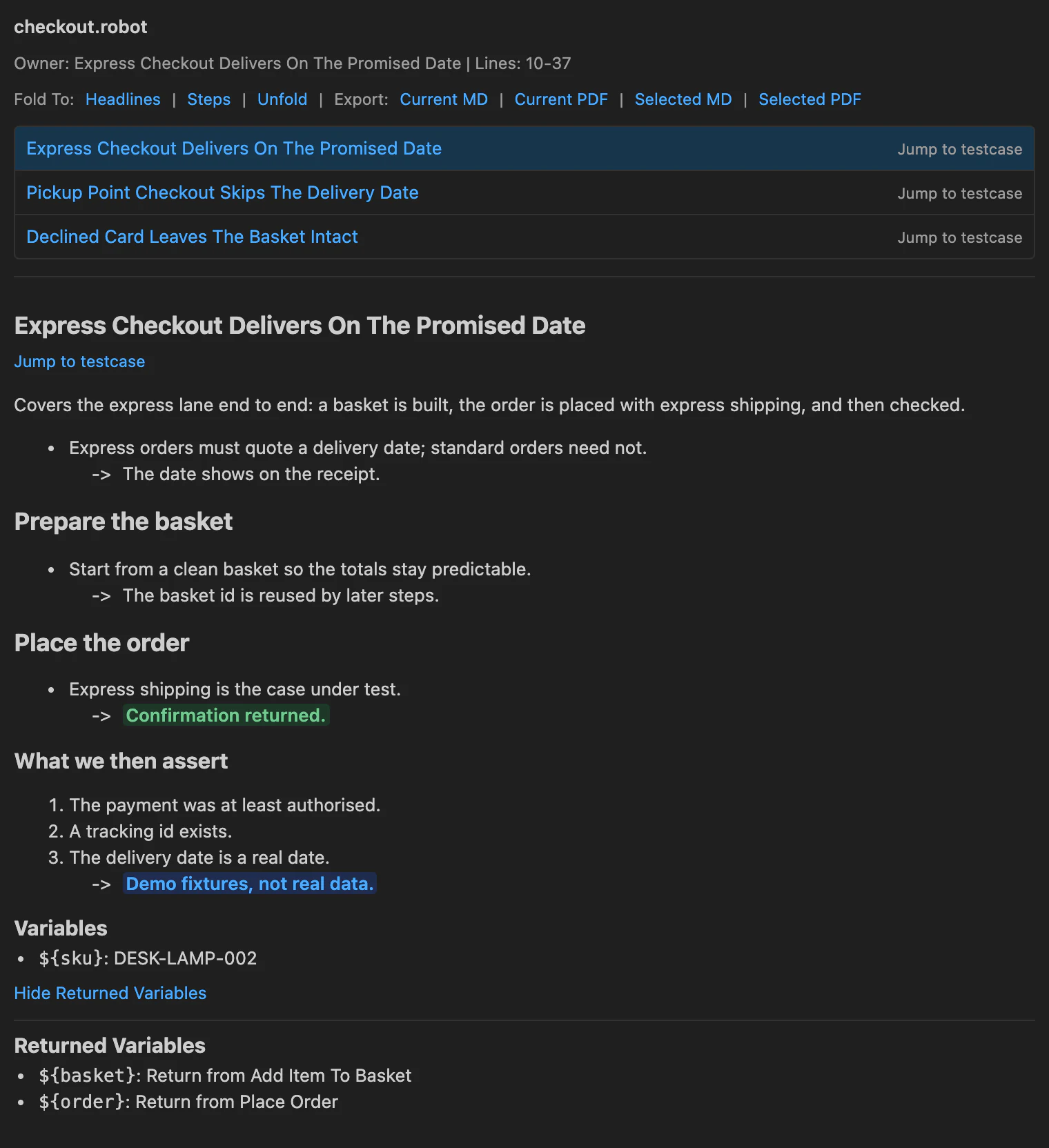
About that image. It is the extension's real Documentation Preview markup, produced by running its own renderer over the file on the left and painting it with VS Code's Dark Modern colour values. It is genuine output, not a mock-up — but it is not a photograph of a running editor window, so the surrounding VS Code chrome is absent.
Prose that survives the source
Source lines are short because editors are narrow; sentences are not. So consecutive
documentation comments are joined into one flowing rendered line, and a continuation indented
under a bullet or an arrow stays part of that item instead of breaking it in half. When you
genuinely want a break, an explicit <br> gives you one. The same rule
applies to wrapped [Documentation] continuation rows.
Every rendered line remembers where it came from. Click a paragraph, a bullet, an arrow note
or a heading in the panel and the editor jumps to the exact source line behind it — including
later lines in blocks that mix a [Documentation] header with inline markers
further down.
Colour that means something
Five semantic tags and eight plain colour tags are recognised inside documentation text. They render in the panel and in the printable export, and they survive a Markdown export as the tags you wrote. Anything else — unknown tags, attributes, arbitrary HTML — is rendered as plain text rather than executed.
Plus <red>, <orange>, <yellow>,
<green>, <blue>, <pink>,
<purple>, <gray>, and
<color value="#0f766e"> for the rare custom one.
What does this keyword actually give me back?
The question you ask a hundred times a day when a Robot test drives a Python library. The answer is in the library's type annotations, three files away. Robot Companion indexes your workspace's Python sources — statically, by reading them; nothing is imported or executed — and keeps the answer one hover away.
It finds the library methods you decorate with @keyword, takes their parameter
annotations, return annotation and docstring, then walks the returned type: dataclasses,
plain annotated classes, @property members, and the element type inside a
list[…] or similar container.
@keyword("Place Order")
def place_order(
    self,
    basket_id: str,
    shipping: ShippingMethod = ShippingMethod.STANDARD,
    gift_wrap: bool = False,
) -> OrderConfirmation:
    """Place the prepared basket and return the
    shop's confirmation.

    Args:
        basket_id: Identifier of a basket built by
            `Add Item To Basket`.
        shipping: Which shipping method was picked.

    Returns:
        The confirmation object.
"""${order.order_id}
${order.total_cents}
${order.currency}
${order.payment_state}
${order.ship_to}
${order.parcels}
${order.total}
# second level
${order.ship_to.street}
${order.ship_to.postcode}
${order.ship_to.city}
${order.ship_to.country}
${order.parcels[0].tracking_id}
${order.parcels[0].method}
${order.parcels[0].delivers_on}Notice what those paths are: not a diagram of a type, but the exact strings you would type next — including the index into the list. That is what the Robot Return Explorer side view offers for the variable under your cursor, and a shallower version of it is what you get on hover over any variable assigned from a keyword call.
Under it sits a technical section for when you want the shape rather than the paths — the resolved type graph, annotated with what each node was recognised as:
OrderConfirmation (dataclass)
  .order_id
  .total_cents
  .currency
  .payment_state
  PaymentState (typed class)
  .ship_to
  Address (dataclass)
    .street
    .postcode
    .city
    .country
  .parcels
  Parcel (dataclass)
    .tracking_id
    .method
    ShippingMethod (typed class)
    .delivers_on
  .total
The same index powers three completions, all of them scoped to
named-argument value positions — the place after argument= where a
wrong guess costs you a run:
- Enum members. Type
shipping=and the members of the annotated Enum are offered. A setting chooses whether they insert the member name, the literal value, or both. - Type-matched local variables. Variables already assigned in this test whose resolved type matches what the argument expects.
- Return members. Type
${order.and the fields of the resolved return type are offered, to a configurable depth.
Hover also resolves plain local values: put the cursor on a variable that a
Set Variable or VAR earlier in the same test assigned, and you see
what it holds — including the ambiguous case, where a conditional gave it two possible values
and the hover says so instead of picking one.
Honest limits. This is static analysis of Python source, not runtime introspection. It
resolves what annotations state. Keywords without a @keyword decorator, dynamic
libraries, and unannotated returns are outside what it can see, and the keyword-doc view says
so rather than guessing when a match is ambiguous.
Fold to the shape of the argument
A five-hundred-line test case is unreadable at full expansion and useless fully collapsed.
Because the extension already knows which lines are headings, which are documentation steps
and which are the Robot steps underneath them, it can fold to those tiers instead of to
brackets: Headlines leaves the #> ## section titles,
Steps leaves the documentation lines, Unfold puts it all back.
Folding is contributed as a normal VS Code folding-range provider, so it composes with the editor you already have; a command is provided to make it the default provider for Robot files if you want the tiers on the standard fold shortcuts.
A CodeLens above each documentation block — Open rendered documentation preview — opens the block in the panel, and the panel's own list of every documented test case and keyword in the file doubles as a table of contents, with a jump link per entry.
The documentation was always shareable
Someone will eventually ask what a test does, and they will not have VS Code open. Four export commands take the current block or a multi-select of blocks and produce either a Markdown file — written where you choose, colour tags preserved as written — or a print-styled page with a Print / Save as PDF button on it.
# Express Checkout Delivers On The Promised Date

Covers the express lane end to end: a basket is built,
the order is placed with express shipping, and then
checked.

- Express orders must quote a delivery date; standard
  orders need not.
    -> The date shows on the receipt.
## Prepare the basket
- Start from a clean basket so the totals stay
  predictable.
  -> The basket id is reused by later steps.
## Place the order
- Express shipping is the case under test.
  -> <success>Confirmation returned.</success>
### What we then assert
1. The payment was at least authorised.
2. A tracking id exists.
3. The delivery date is a real date.
  -> <note>Demo fixtures, not real data.</note>

## Variables

- `${sku}`: DESK-LAMP-002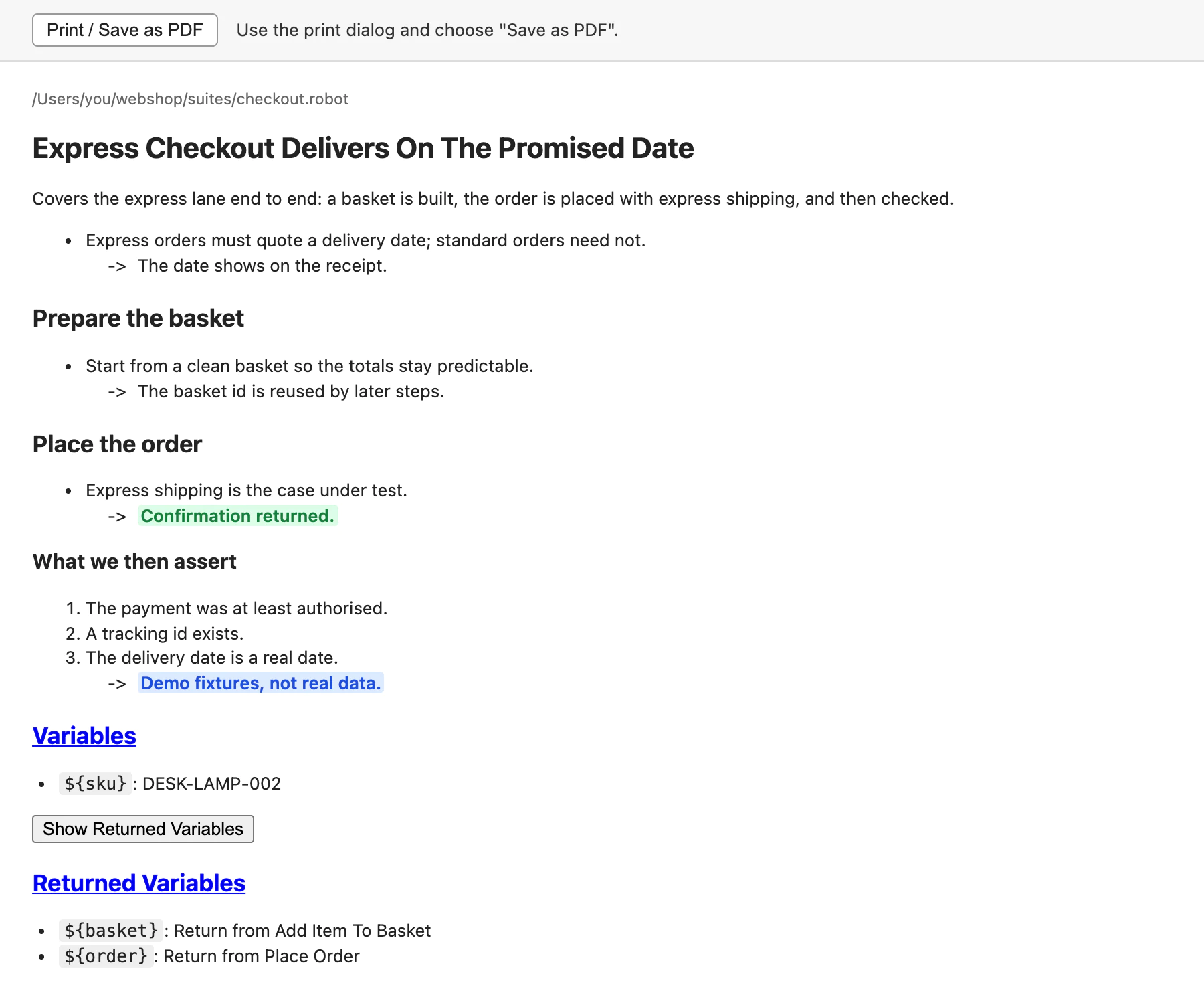
Both exports carry the block's Variables and Returned Variables sections — the local values the extension resolved, and which keyword each returned variable came from — so the exported document explains the test's data as well as its steps.
What it deliberately does not do
Robot Framework tooling in VS Code is a crowded shelf, and most of it wants to own the editor. This extension contributes two webview views, a CodeLens provider, a folding-range provider, a hover provider and one completion provider. That is the entire surface it claims.
- No formatter and no diagnostics. It never registers them, so it cannot fight the extension that does.
- No language server, no runtime dependencies. The package declares none at all; there is nothing bundled to run alongside your editor.
- It does not edit your files unless you ask it to. Two actions write: inserting a missing named argument from the keyword-documentation view, and exporting documentation to a file you pick.
- It gets out of the way during a debug session. Editor-manipulating actions such as folding pause while a Robot debug session is running.
Where it does cost something, it says so: indexing a workspace is real work, so the index and the resolved return types are cached in memory and optionally on disk per workspace, the roots it scans are configurable, and an Invalidate All Caches command exists for when you want to be sure.
Everything it contributes
| Contribution | What it is |
|---|---|
| Documentation Preview | Sidebar webview. Rendered documentation for the block at the cursor, a table of contents for the file, per-line source jumps, fold and export actions. |
| Robot Return Explorer | Sidebar webview. Resolved return structure, argument context, and the indexed
Python @keyword docstring for the keyword under the cursor, with jump
links to the Python definition. |
| Hover | Local Set Variable / VAR values, Enum members behind a
named argument, and the structure of a keyword's return value. |
| Completion | In named-argument value positions only: Enum members, type-matched local variables,
and ${var.} return members. |
| CodeLens | One lens per documentation block, opening it in the preview. |
| Folding | Documentation-aware ranges, plus fold-to-headlines / fold-to-steps / unfold commands. |
| 12 commands | Focus, open current block, four exports, four folding commands, show output, invalidate caches. |
| 35 settings | Each hover, completion and the CodeLens has its own on/off switch; depths, limits, index roots, exclusions, cache size and log level are all configurable. |
Every one of them is described, with its real limits and the prerequisites it depends on, in the reference — including the parts of this extension that quietly do nothing unless your Python keywords are shaped a particular way. The README's settings table and the Marketplace listing carry the same list with every default.
Open a .robot file
It is on the
Visual
Studio Code Marketplace under the identifier
StochasticEntropy.robot-markdown-companion. Search the Extensions view for
Robot Companion, or paste one line:
# in VS Code's Quick Open bar — Ctrl/Cmd + P
ext install StochasticEntropy.robot-markdown-companion

# or from a shell, with the code CLI on your PATH
code --install-extension StochasticEntropy.robot-markdown-companion
If you would rather build it than trust a listing, the repository packages its own
.vsix. The package script is the same one the published build comes
from, and it writes robot-markdown-companion-<version>.vsix into the clone.
git clone https://github.com/StochasticEntropy/robot-companion
cd robot-companion
npm install
npm run package
code --install-extension robot-markdown-companion-*.vsix
Either way, that is the setup. The extension activates on Robot files, indexes the workspace in the background, and the panels appear under its icon in the activity bar. Nothing to configure before it is useful; the 35 settings exist for after you know what you want to change.
It works on any .robot or .resource file, whether or not another
extension has claimed the Robot Framework language id — the providers match the file pattern
as well as the language.
The listing, the source, the inbox
Nothing on this page is the canonical copy of anything. These are.
- Marketplace listing. The published build, its full contribution list, and the one-click install.
- Source on GitHub. The extension itself — no minified bundle, no build step between the repository and what runs.
- README. The reference version of everything described here: features, commands, settings, and the limits at the edges.
- Inline documentation reference. Every rule the renderer follows: the two markers, how consecutive comments join, where a break has to be forced, and the colour vocabulary.
- Caching notes. What gets indexed, when it is invalidated, and why the workspace scan does not repeat on every keystroke.
- Changelog. What changed, release by release.
- Issues. Where a wrong resolution or a marker that did not render should go. A file that reproduces it is worth a page of description.
- MIT licence. Use it, fork it, ship it inside something else.